📱 Getting Started (Phone → Computer Pairing)
This guide walks you through everything you need to do after installing the NovaKey phone app, from installing the desktop companion to sending your first secret.
What you need
- An Phone with the NovaKey app installed
- A computer running NovaKey-Daemon (Windows, macOS, or Linux)
- A local network connection (phone and computer on the same network)
NovaKey does not use cloud services. All secrets remain local to your devices.
High-level setup flow
- Install NovaKey-Daemon on your computer
- Open NovaKey on your phone
- Add a Listener (your computer)
- Pair the phone and computer
- Add a secret on your phone
- Arm the computer and send secrets when needed
This is the fastest path to:
Send a secret from phone → computer
Step 0 — Install NovaKey-Daemon on your computer
NovaKey-Daemon is the free desktop companion that receives secrets from your phone.
✅ Recommended: Native installers (modern)
These installers are the supported and recommended way to install NovaKey-Daemon.
Download the installer that matches your system from:
https://downloads.novakey.app/Installers/<file name>
Or from GitHub Releases:
https://github.com/OsbornePro/NovaKey-Daemon/releases
Platform notes
Windows
- Download NovaKey-Setup.exe
- Double-click and follow the installer
- No admin privileges required
- Creates a per-user Scheduled Task
- Starts automatically at login
macOS
-
Download the
.pkgthat matches your Mac: -
Apple Silicon (M1/M2/M3):
*-arm64.pkg - Intel:
*-amd64.pkg - Double-click and follow the installer
-
Grants permissions under:
-
Accessibility
- Input Monitoring
- Registers a LaunchAgent and starts automatically
Linux
- Download
.debor.rpmpackage - Install using your package manager
- Runs as a systemd user service
- Starts automatically when you log in
⚠️ Legacy installation (deprecated)
The original shell and PowerShell install scripts still exist for advanced or automated environments but are no longer recommended for end users.
They live under:
installers/legacy/
They may be removed in a future release.
Verify the daemon is running
The daemon must be listening on port 60768.
Windows
Get-NetTcpConnection -State Listen -LocalPort 60768
Linux
ss -tunlp | grep 60768
macOS
lsof -i :60768
If the daemon is listening, you’re ready to pair.
Step 1 — Add a Listener (Phone)
- Open the NovaKey app
- Tap Listeners (antenna icon)
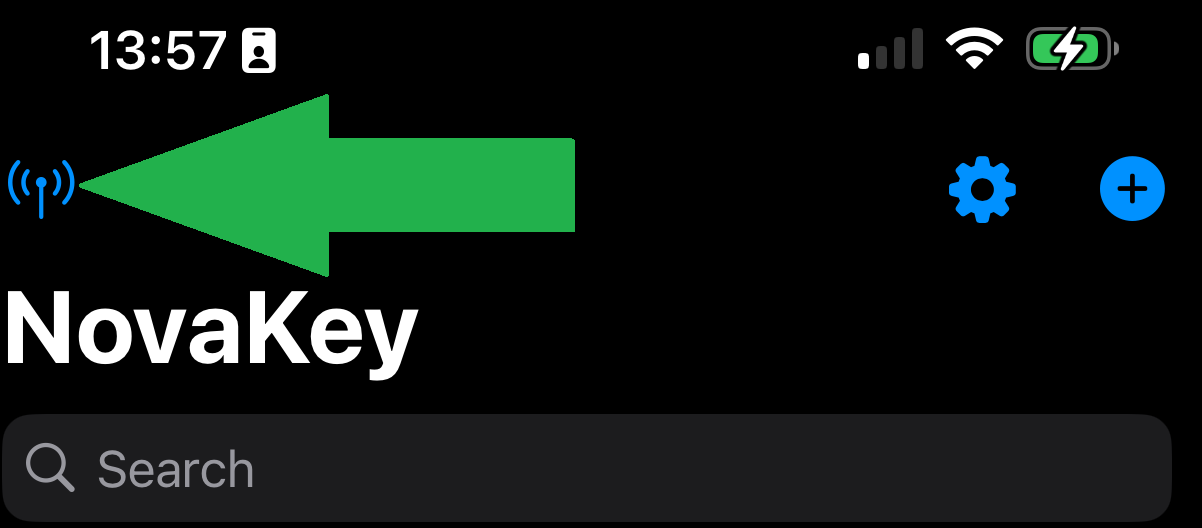
- Tap Add Listener
-
Enter:
-
Name: e.g. “My Desktop”
- Host/IP: your computer’s LAN IP or hostname
- Port:
60768 - Enable Make Send Target
- Tap Add
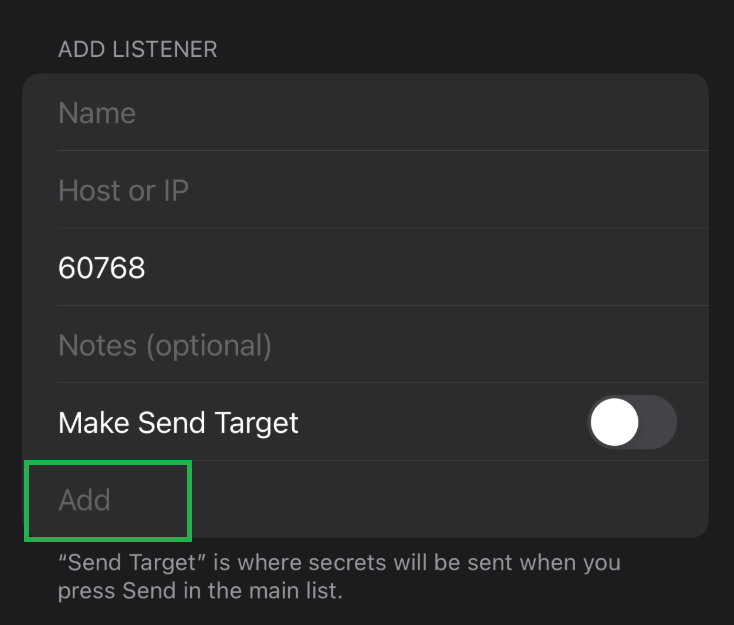
You will now see your listener added.
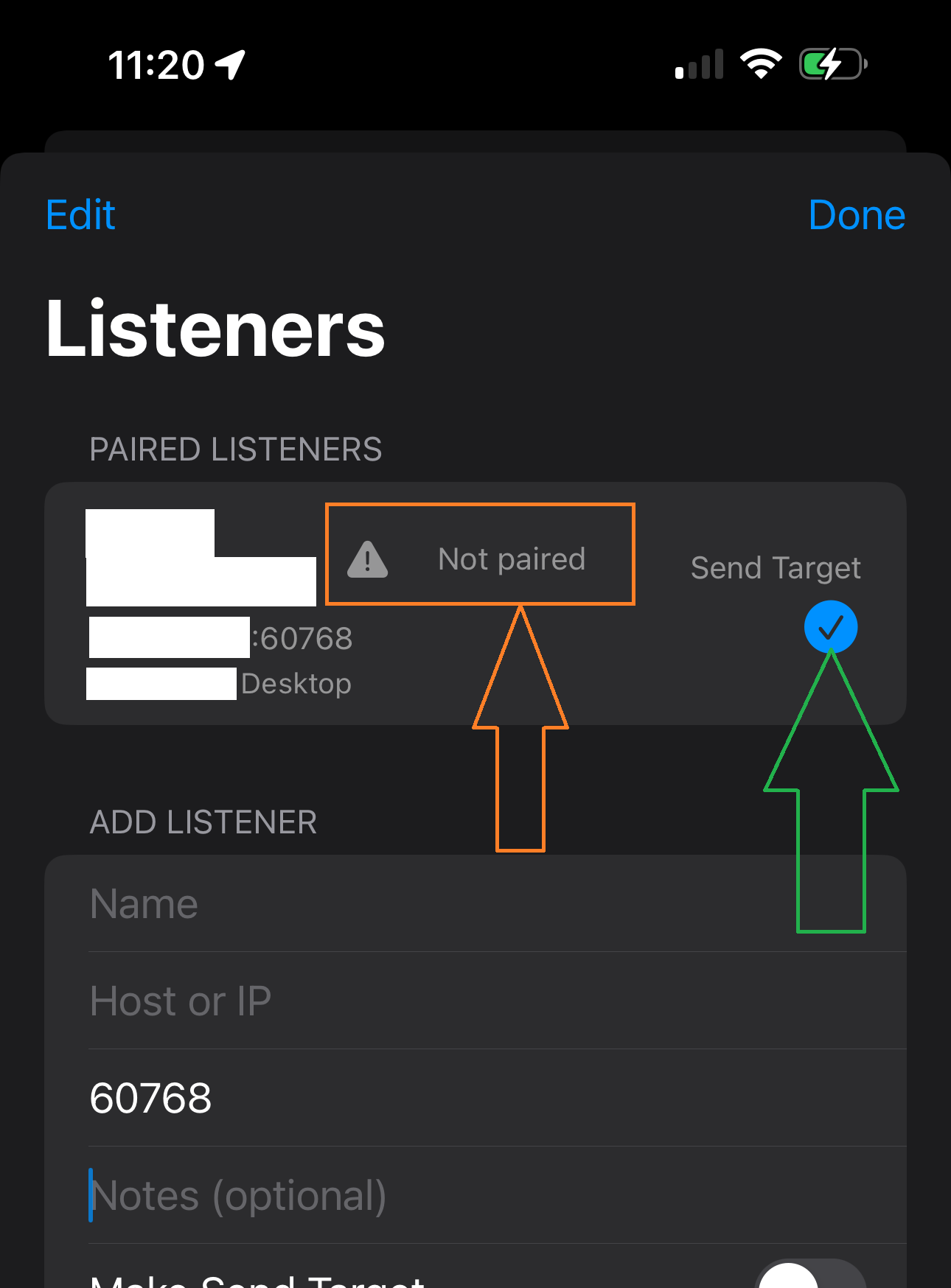
⚠️ A Send Target must be selected to pair or send secrets.
Step 2 — Pair the phone and computer (QR code)
On your phone
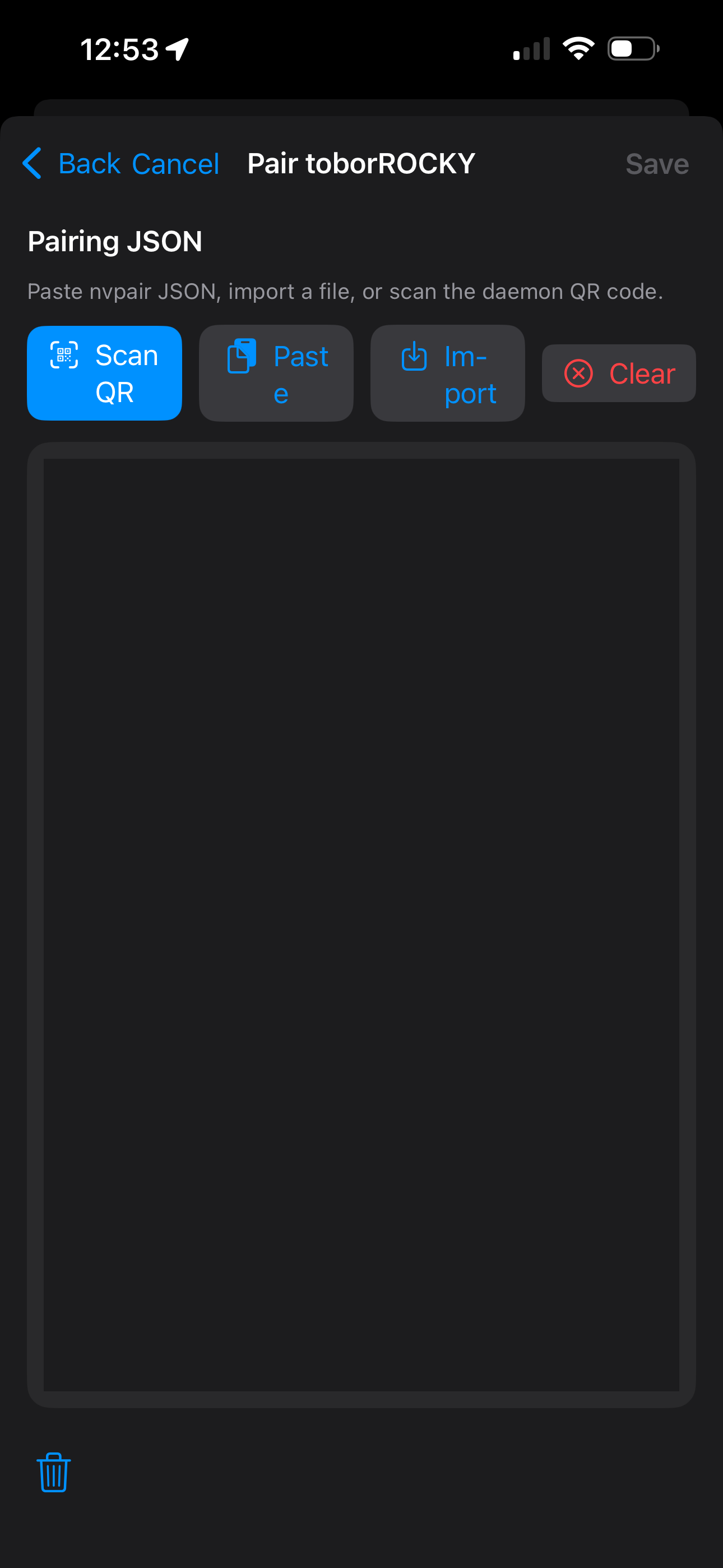
- Go to Listeners
- Select your listener (or swipe right)
- Tap Pair
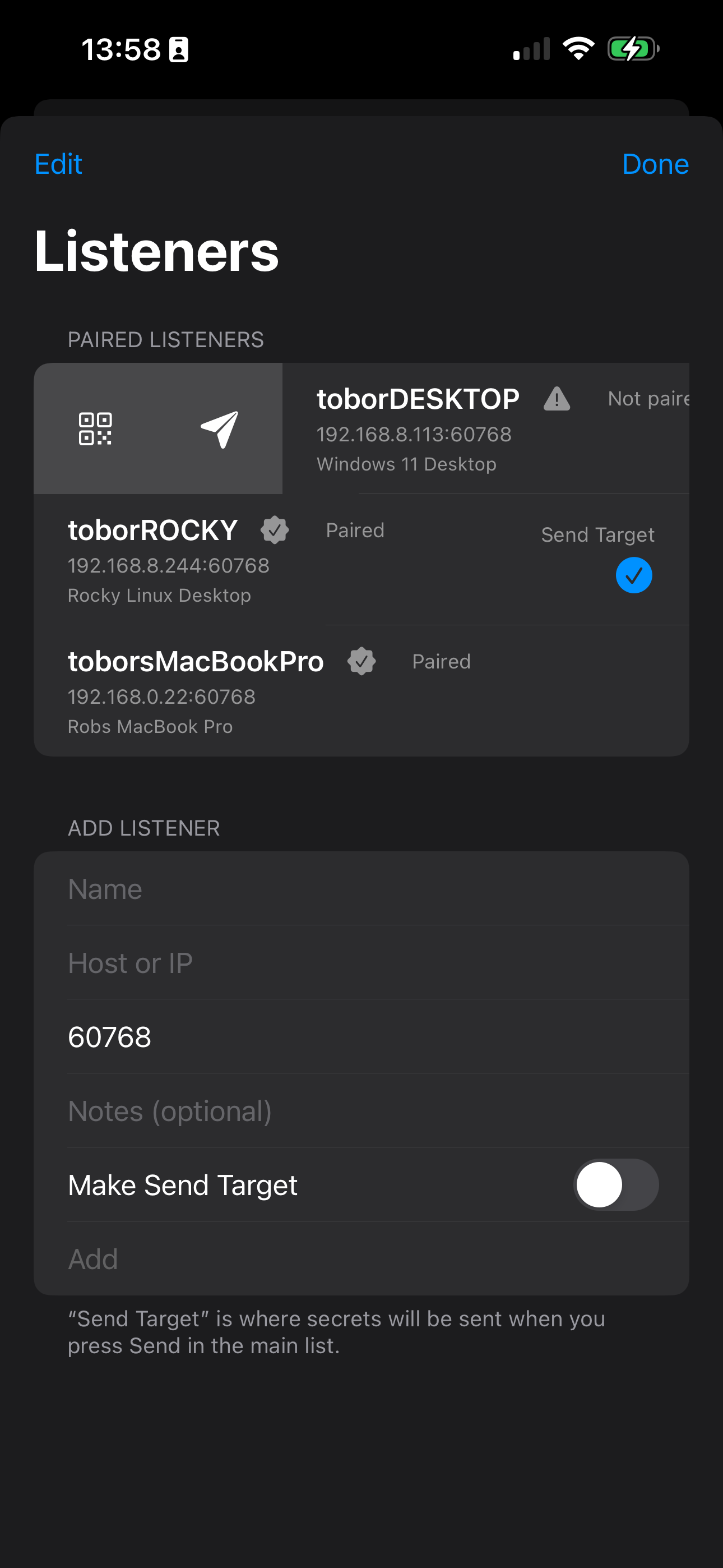
- Tap Scan QR Code
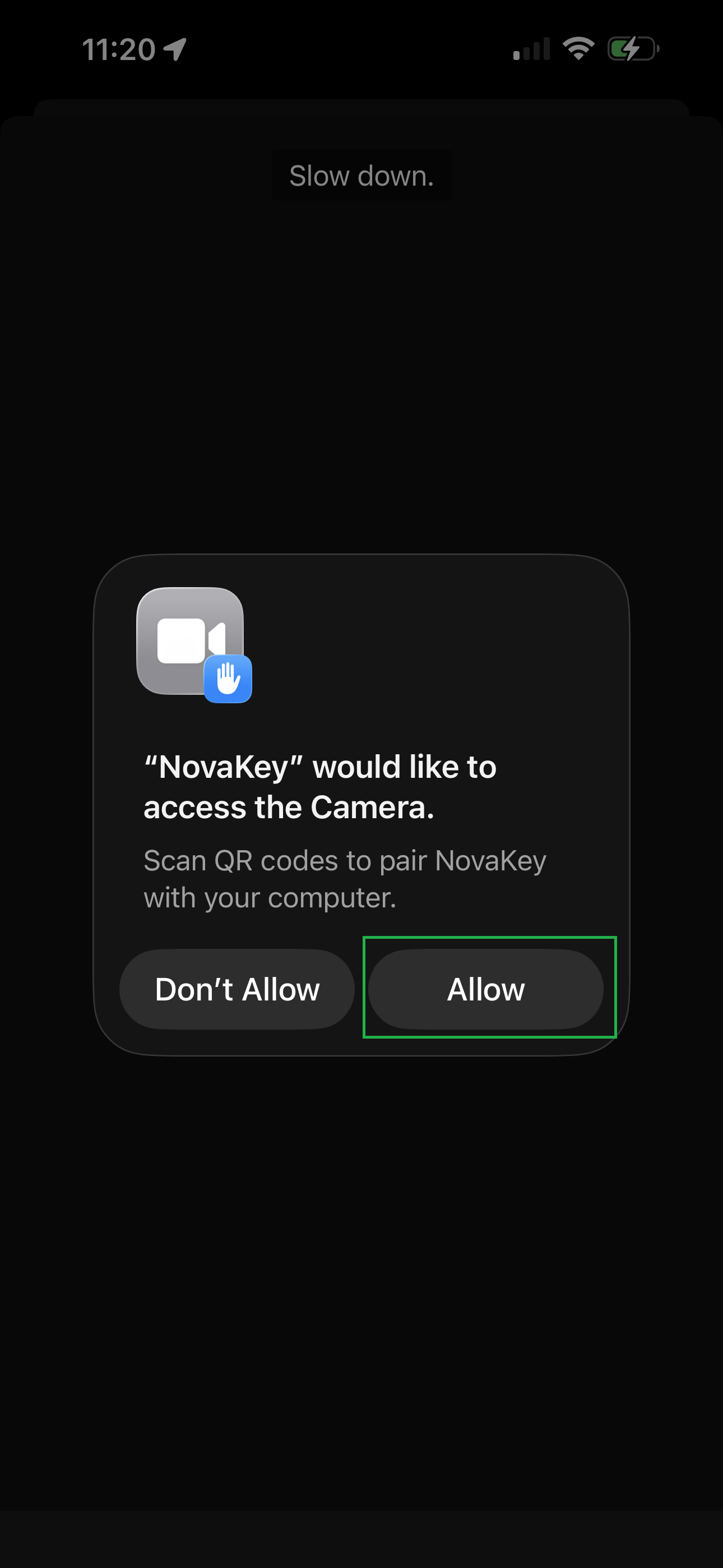
- Allow camera access if prompted
On your computer
- Ensure NovaKey-Daemon is running
-
If no devices are paired yet:
-
The daemon enters pairing mode
- A time-limited QR code is generated and displayed
- Scan the QR code with your phone
Complete pairing
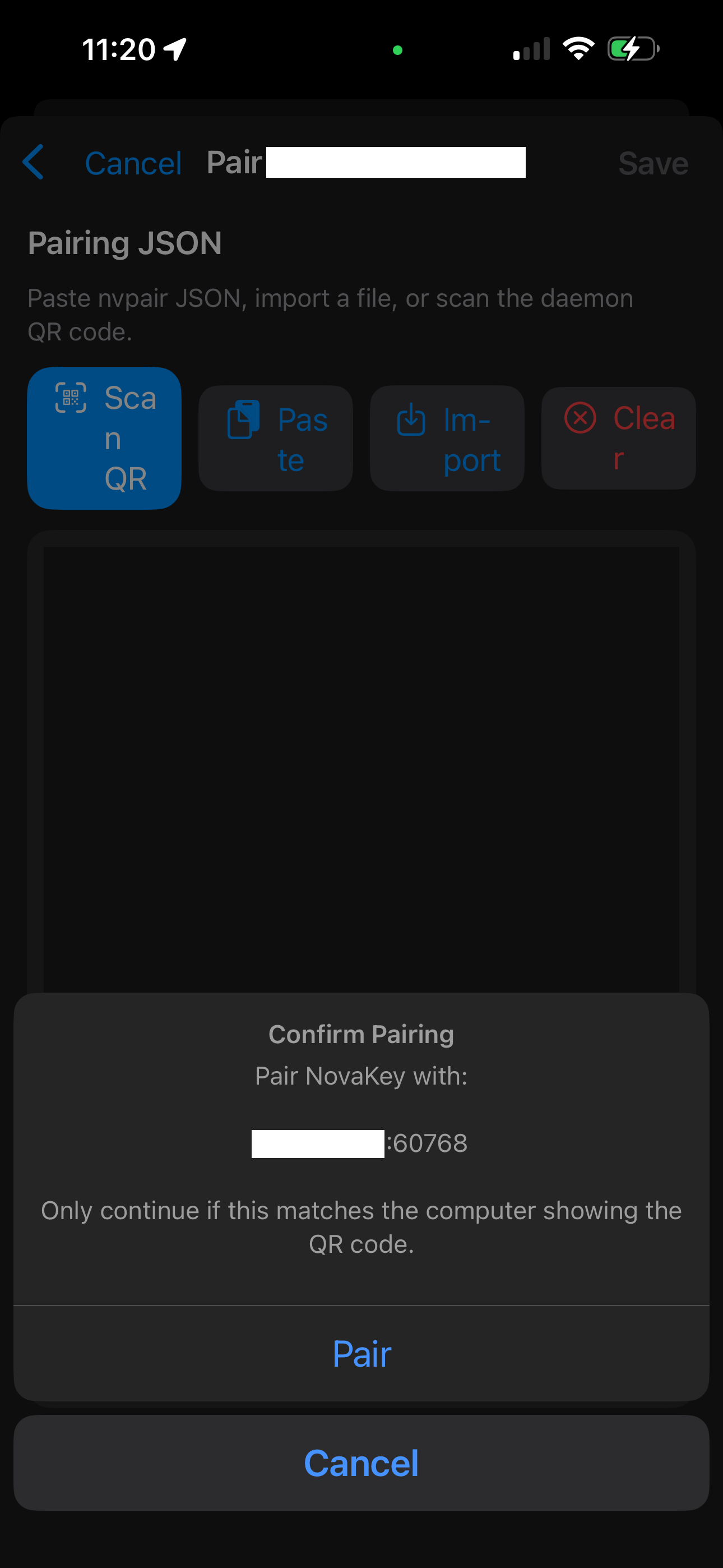
- Verify the device information on your phone
- Tap Pair
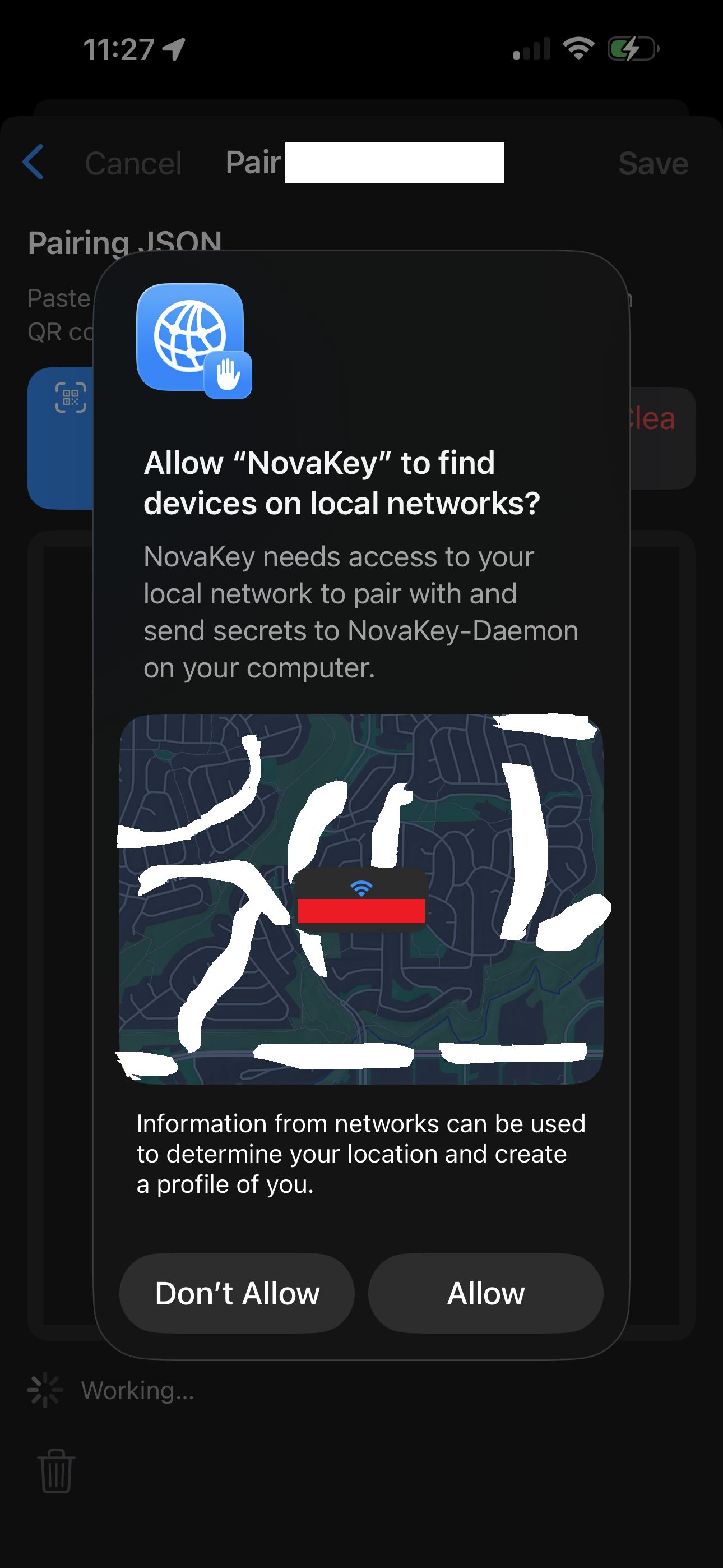
- Allow local network access when prompted
When pairing succeeds, the listener will show Paired.
Step 3 — Add your first secret
- Tap +
- Enter a label and secret
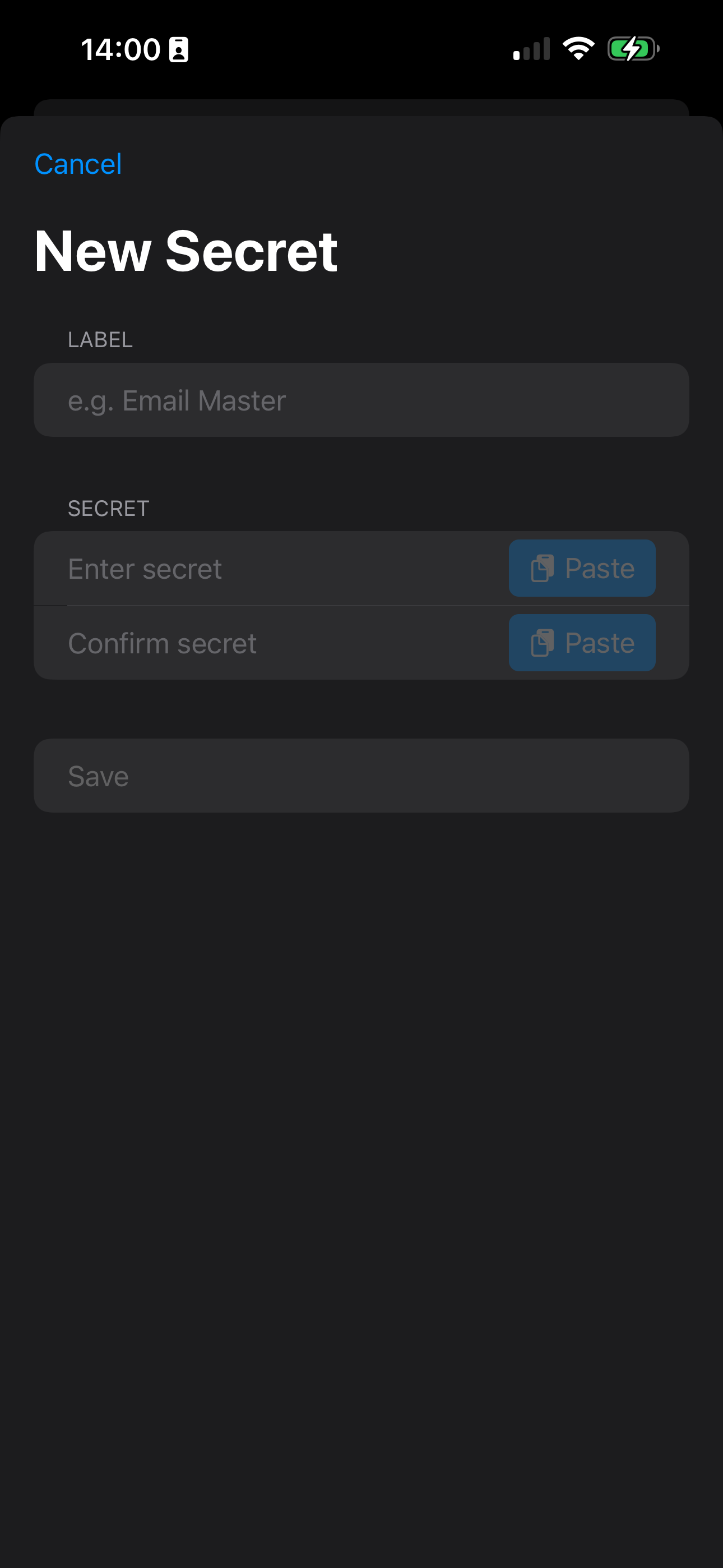
- Confirm and tap Save
NovaKey intentionally never displays secrets again after saving.
Step 4 — Send a secret
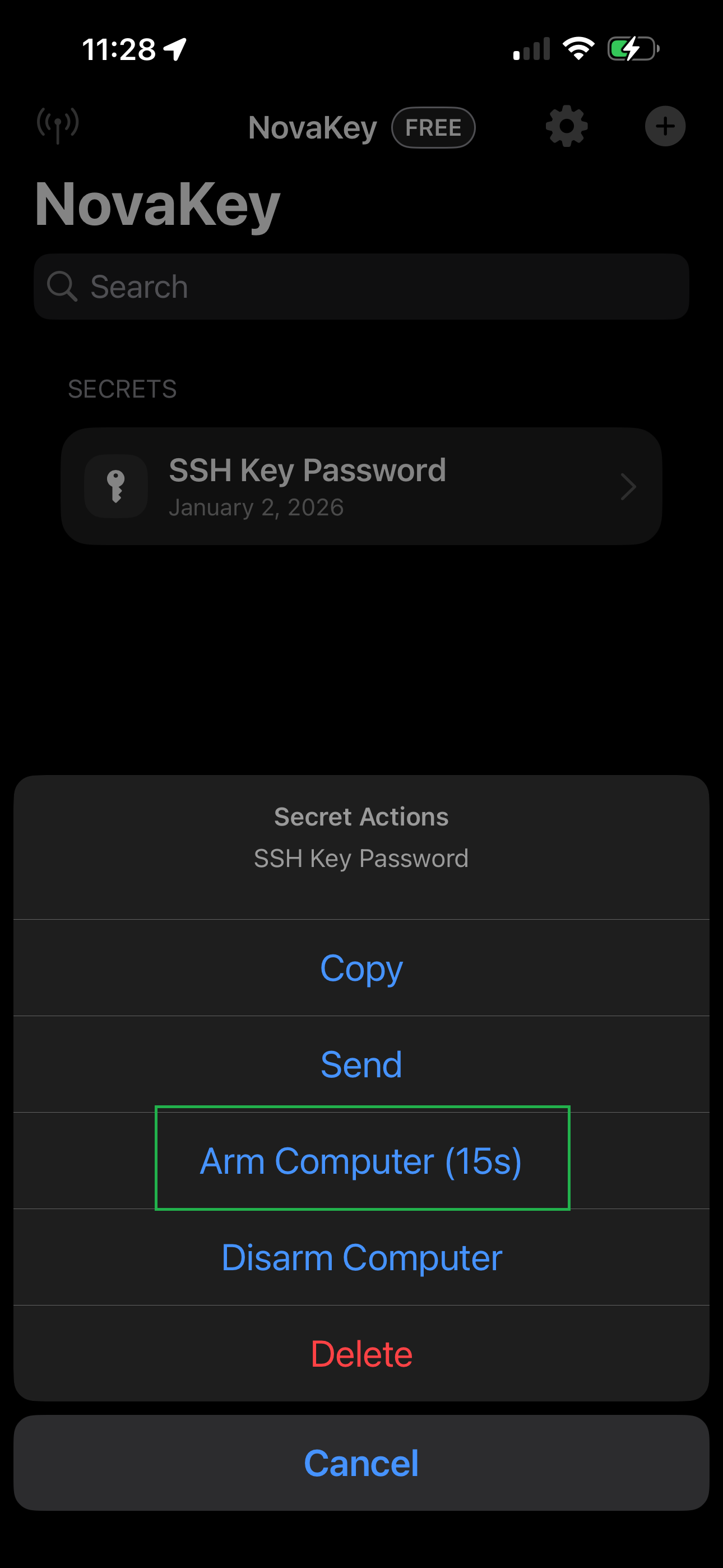
- Tap the secret
- Tap Arm Computer
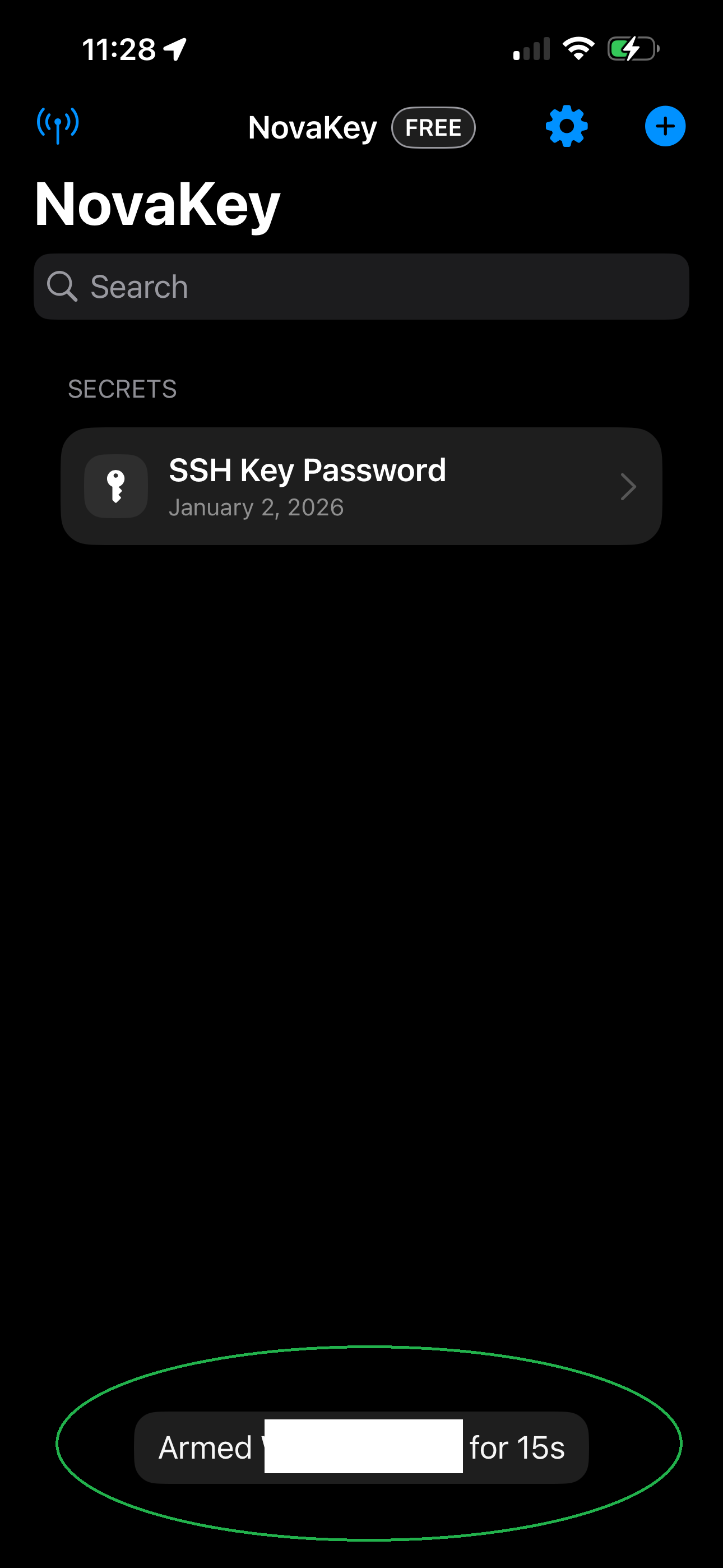
- Tap Send
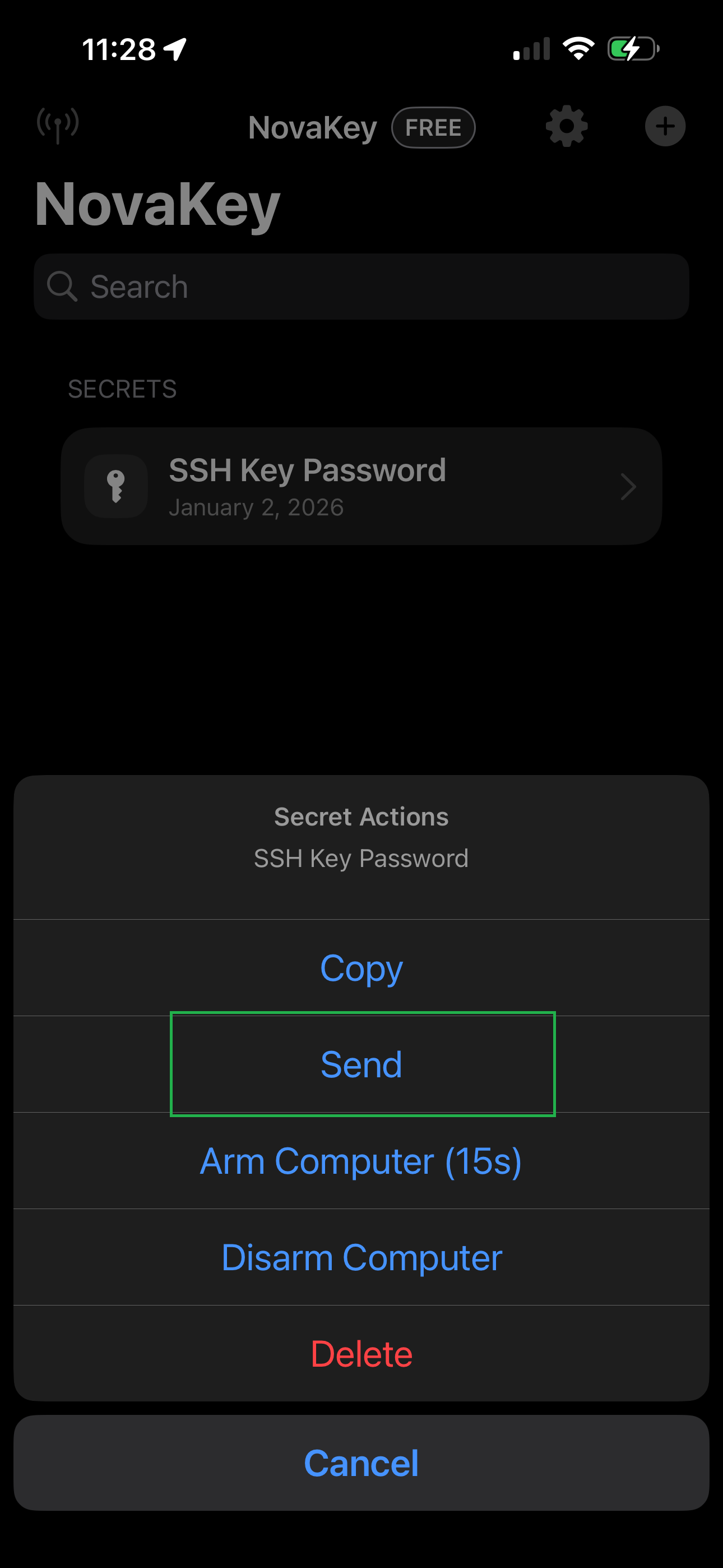
- Authenticate with Face ID or device passcode
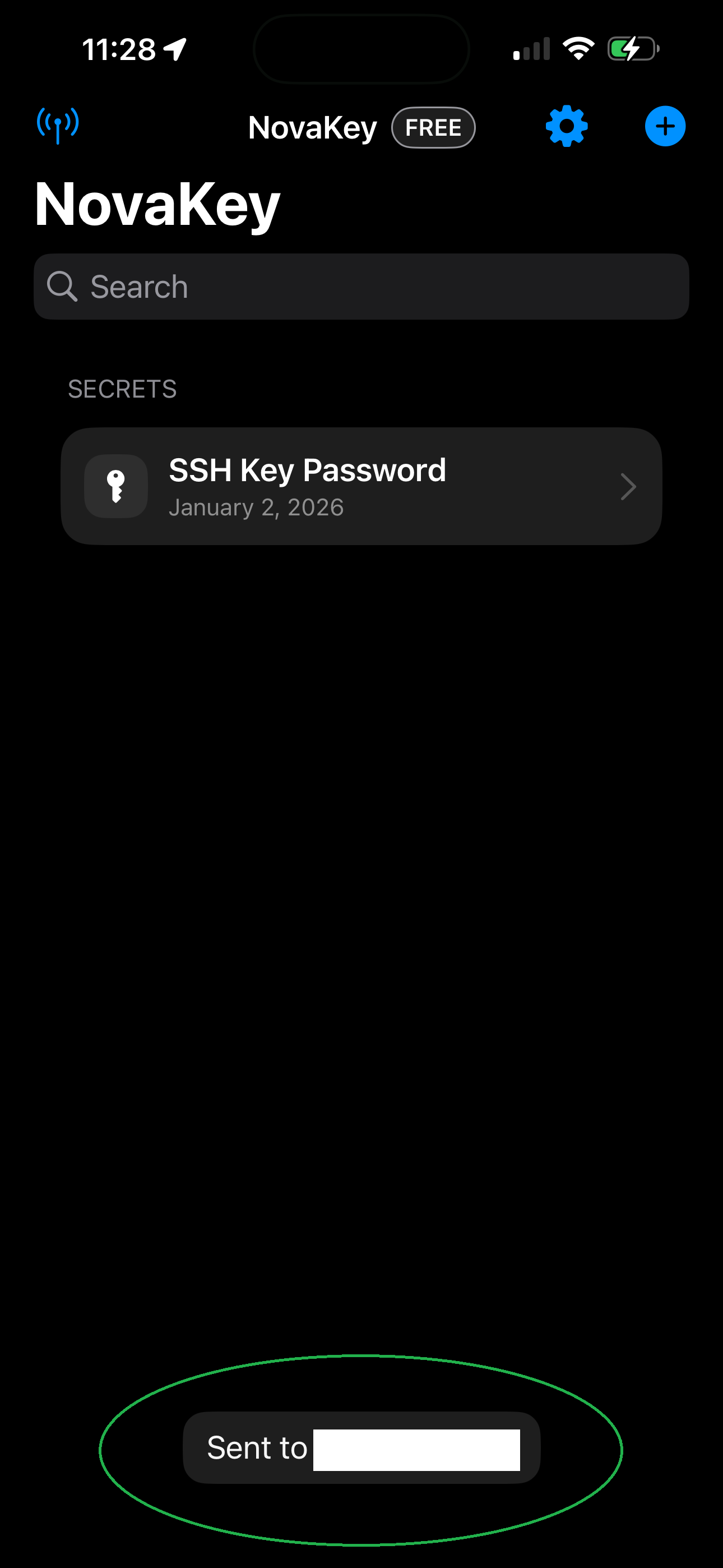
Possible outcomes:
- Sent to
— typed injection - 📋 Copied to clipboard on
— typing blocked, clipboard used
Both indicate a successful send.
If something doesn’t work
Start with:
- Phone App → Troubleshooting
- NovaKey-Daemon → Troubleshooting
Most issues are caused by:
- Phone and computer not on the same network
- Firewall blocking port
60768 - Daemon bound to
127.0.0.1instead of a LAN address - Pairing window missed (restart daemon if needed)