Phone App Troubleshooting
This page covers common issues when using the NovaKey iOS app and how to resolve them quickly.
NovaKey is intentionally strict about pairing and message delivery. If something feels “locked down,” that is usually by design for safety.
If you purchased the phone app and you can't get it to work please reach out so I can help.
Email Me
Cannot add more secrets or listeners
You are likely using the Free tier.
NovaKey will: - Show a clear alert explaining the limit - Offer the Pro unlock - Continue functioning normally otherwise
Pairing issues (general)
Before troubleshooting pairing:
- Ensure NovaKey-Daemon is running on the computer
- Ensure the phone and computer can reach each other over the network
- Ensure the correct host/IP and port are configured on the listener
All critical errors are announced via VoiceOver when enabled.
Common issues
“No Send Target set”
What it means:
You haven’t selected a default computer to send secrets to.
Fix: 1. Open Listeners 2. Select a listener 3. Enable Make Send Target
You must have a Send Target to pair or send.
“Not paired”
What it means:
Your phone does not currently trust the target computer.
Fix: - Open Listeners - Select the listener - Tap Pair - Complete pairing by scanning the QR shown on the computer
Re-pairing is required if: - the daemon was reinstalled - pairing keys were rotated - the device store was reset
“Pairing didn’t work” / “I missed the QR”
What it means:
Pairing uses a time-limited QR code generated by the daemon.
If the QR expires or is missed: - pairing may not complete - the daemon may not immediately re-enter pairing mode
What to try: - Restart the daemon on the computer - Retry pairing from the phone
If pairing still does not appear, see: NovaKey-Daemon → Troubleshooting
“Cannot reach computer” / pairing never starts
Common causes:
- The daemon is bound to 127.0.0.1 but the phone is connecting over Wi-Fi
- Firewall rules block the port
- Phone and computer are on different networks
Fix:
- Ensure the listener host/IP matches how the daemon is bound
- For Wi-Fi pairing, the daemon must listen on a LAN-reachable address
- Verify the port (60768 by default)
“Computer isn’t armed” / “Not armed”
What it means:
The daemon has arming (“push-to-type”) enabled, and injection is blocked until it is armed locally.
Fix: - Arm NovaKey-Daemon on the computer - Then retry sending from the phone
This is a safety feature to prevent unattended injection.
If you did send the arming code, restart the NovaKey-Daemon service on your device then try arming and sending again from your phone.
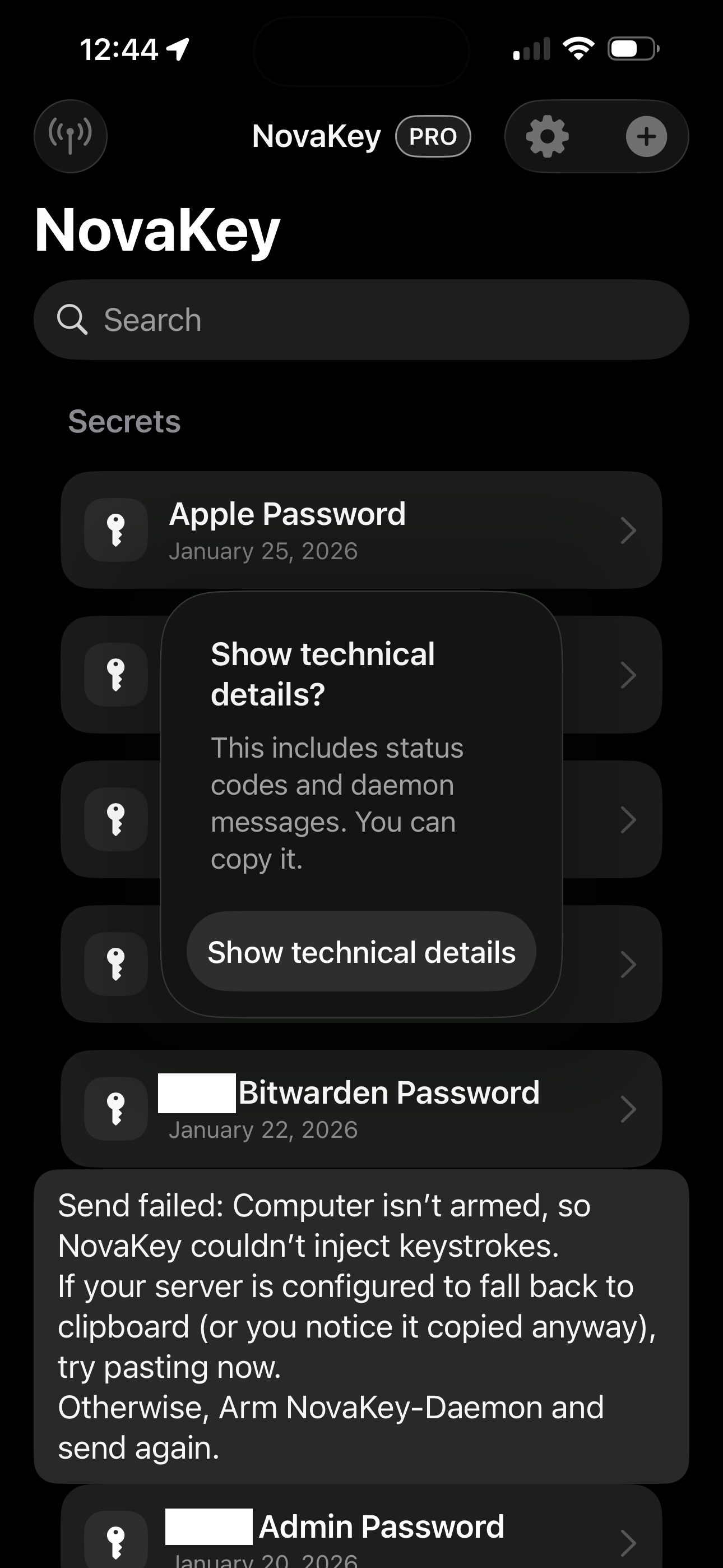
“Decrypt auth error” after switching target computer
What it means:
An Arm command was previously sent to a computer that was offline instead of the desired computer, leaving the authentication state out of sync when switching to a different listener.
Fix: - Restart the NovaKey service on the target computer - Retry sending the Arm command from the phone
Although the in-app troubleshooting prompt may suggest re-pairing, this is not required in this scenario. Restarting the service restores a valid authentication session.
Why this happens: When the Arm command is sent to a computer that is not online, the authentication state can become out of sync. Switching listeners and retrying the command may cause the app to attempt to reuse an invalid or stale authentication session, resulting in the decrypt error.
“Needs approval”
What it means:
Two-Man Mode is enabled on the daemon. Injection requires an explicit approval before it is allowed.
Fix:
- Approve on the computer
- Then send again from the phone
(or enable auto-approve in the app, if appropriate)
Approvals are time-limited.
“Copied to clipboard on computer”
What it means:
The daemon could not type into the active field, but successfully copied the secret to the computer’s clipboard.
This is treated as a successful send, but is visually differentiated.
Common causes: - OS injection permissions missing (macOS Accessibility) - Wayland / compositor restrictions (Linux) - Secure input mode enabled by the focused app - Target policy denying the focused app/window
What to do next: - Paste manually on the computer - Review NovaKey-Daemon → Troubleshooting if this happens unexpectedly
“Clock check failed” / timestamp errors
What it means:
NovaKey rejected a message due to freshness or replay protection.
Fix: - Ensure both phone and computer have correct system time - Enable automatic time synchronization on both devices
If nothing seems to work
Before digging deeper, collect:
- Listener host and port
- Whether the daemon is bound to loopback (
127.0.0.1) or LAN - Whether the daemon is armed
- Whether Two-Man Mode is enabled
- The exact error message shown in the app
- Relevant daemon logs (treat logs as sensitive)
Then check: - NovaKey-Daemon → Troubleshooting - FAQ
If you’re still stuck, re-pairing is often the fastest reset.